
(reading time < 5 minutes)
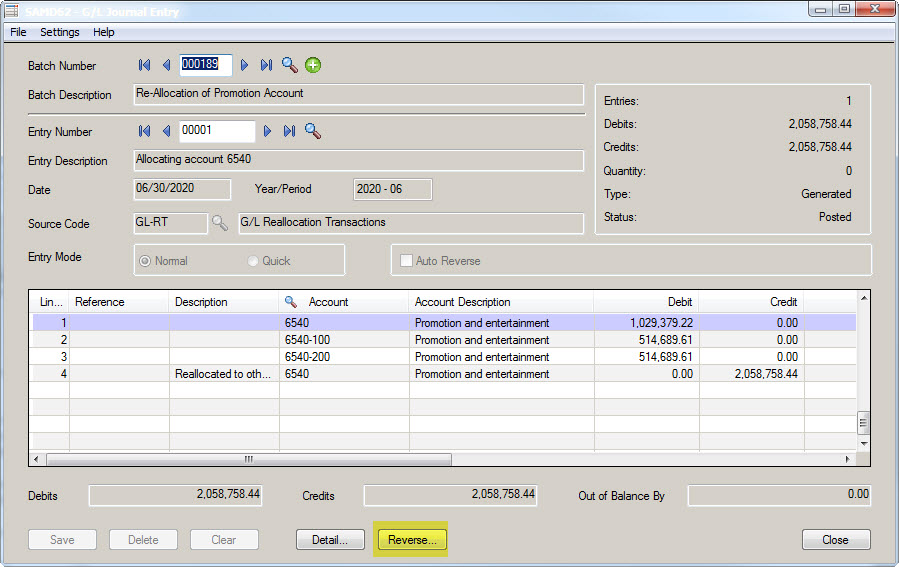
Sage 300 makes it very easy to reverse a posted G/L Batch (or Entry). First open the posted batch that you would like to reverse.

Option 1: Reverse the entire batch
Click the Reverse button at the bottom of the screen.
The Create Reversing Batch screen will open.
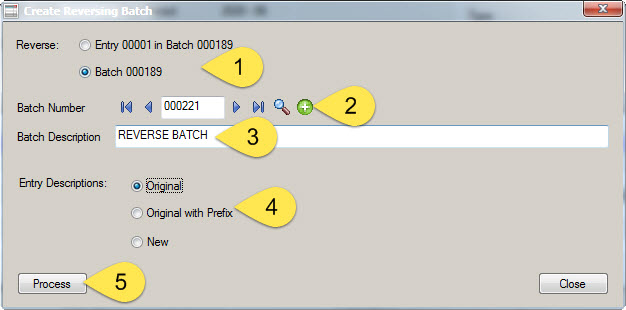
- Select the Batch option
- Create a new batch by clicking the new/add button next to the batch number (you can use an already-existing, unposted batch if you like)
- Update the batch description if you choose – you can change this later
- Set the option for the entry descriptions if you like – you can change these later
- Click the process button
This will create a new, unposted batch with all of the entries reversed using the same period in which they were originally posted. You can modify this batch as much as you like and post it when you are ready.
Option 2: Reverse an entry in the batch
Find the entry number that you would like to reverse within the batch. Then click the Reverse button at the bottom of the screen.
The Create Reversing Batch screen will open.
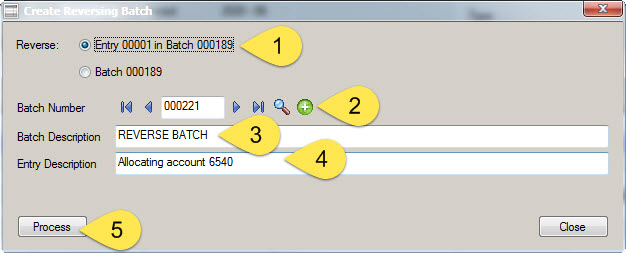
- Select the Entry option
- Create a new batch by clicking the new/add button next to the batch number (you can use an already-existing, unposted batch if you like)
- Update the batch description if you choose – you can change this later
- Update the entry description if you like – you can change these later
- Click the process button
This will create a new, unposted batch with the entry you selected reversed using the same period in which it was originally posted. You can modify this batch as much as you like and post it when you are ready.
This was the first time I needed to reverse a batch in SAGE 300 and these instructions were very straight forward and helpful.